tracks new
Create a new Tracks application with complete project structure.
Synopsis
tracks new <project-name> [flags]
Description
The new command generates a production-ready Go web application with:
- Clean layered architecture (handlers, services, repositories)
- Database integration (LibSQL, SQLite3, or PostgreSQL)
- Health check endpoint with repository pattern
- Configuration management with Viper
- Structured logging with zerolog
- Test scaffolding with testify
- Build tooling (Makefile, Air for live reload)
- Docker Compose for local development
Flags
--db (string)
Database driver to use.
Options: go-libsql, sqlite3, postgres
Default: go-libsql
Examples:
tracks new myapp --db postgres
tracks new myapp --db sqlite3
tracks new myapp --db go-libsql
Notes:
- go-libsql: Recommended for most projects. Compatible with Turso cloud databases. Requires CGO.
- sqlite3: Traditional SQLite. Requires CGO.
- postgres: PostgreSQL. No CGO required, best for cross-compilation.
--module (string)
Go module name for go.mod. Must be a valid Go import path.
Default: example.com/<project-name>
Examples:
tracks new myapp --module github.com/username/myapp
tracks new myapp --module example.com/company/myapp
--no-git
Skip git repository initialization.
Default: false (git repository IS initialized)
Example:
tracks new myapp --no-git
Examples
Basic project with defaults
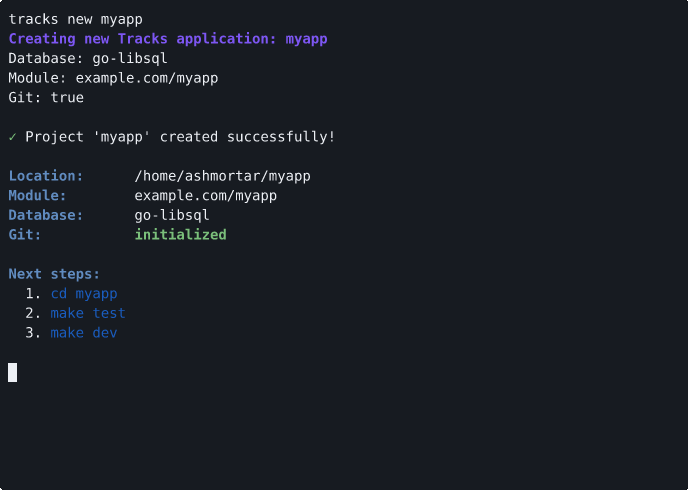
tracks new myapp
This creates a project with:
- Module:
example.com/myapp - Database: LibSQL (go-libsql)
- Git: Initialized
Project with PostgreSQL
tracks new myapp --db postgres --module github.com/me/myapp
Skip git initialization
tracks new myapp --no-git
Multiple flags combined
tracks new myapp \
  --db postgres \
  --module github.com/company/myapp \
  --no-git
Success Output
After successfully creating a project, you'll see:
Generated Project Structure
myapp/
├── cmd/
│   └── server/
│       └── main.go              # Application entry point
├── internal/
│   ├── config/
│   │   ├── config.go            # Viper configuration
│   │   └── config_test.go
│   ├── interfaces/
│   │   ├── health.go            # Health service interface
│   │   └── logger.go            # Logger interface
│   ├── logging/
│   │   ├── logger.go            # zerolog wrapper
│   │   └── logger_test.go
│   ├── domain/
│   │   └── health/
│   │       ├── service.go       # Business logic
│   │       ├── service_test.go
│   │       └── repository.go    # Data access
│   ├── http/
│   │   ├── server.go            # HTTP server setup
│   │   ├── routes.go            # Route registration
│   │   ├── routes/
│   │   │   └── routes.go        # Route constants
│   │   ├── handlers/
│   │   │   ├── health.go        # HTTP handlers
│   │   │   └── health_test.go
│   │   └── middleware/
│   │       └── logging.go       # Request logging
│   └── db/
│       ├── db.go                # Database connection
│       └── queries/
│           ├── .gitkeep
│           └── health.sql       # SQLC queries
├── .air.toml                    # Air live reload config
├── .env.example                 # Environment template
├── .gitignore
├── .golangci.yml                # Linter configuration
├── .mockery.yaml                # Mock generation config
├── .tracks.yaml                 # Tracks project metadata
├── docker-compose.yml           # Local development services
├── go.mod
├── Makefile                     # Build automation
├── README.md                    # Project documentation
└── sqlc.yaml                    # SQLC configuration
Next Steps
After creating your project:
1. Change into project directory
cd myapp
2. Run tests
make test
This runs:
- Unit tests with race detector
- Generates coverage report
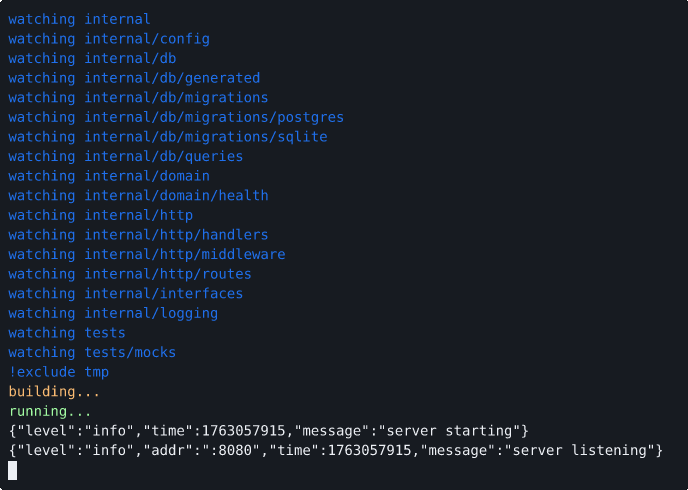
3. Start development server
make dev
This starts the server with Air for live reload on port 8080.
4. Verify health check
curl http://localhost:8080/api/health | jq

Expected response:
{
  "status": "ok",
  "timestamp": "2025-11-08T19:30:00Z",
  "checks": {
    "database": "connected"
  }
}
5. Explore available make commands
make help
Platform Requirements
Linux
For go-libsql or sqlite3 (requires CGO)
Ubuntu/Debian:
sudo apt-get install gcc
Alpine:
apk add gcc musl-dev
For postgres
No additional requirements (pure Go driver).
macOS
For go-libsql or sqlite3
Xcode Command Line Tools (usually pre-installed):
xcode-select --install
For postgres
No additional requirements.
Windows
For go-libsql or sqlite3
Install MinGW for CGO support:
choco install mingw
Or use TDM-GCC.
For postgres
No additional requirements.
Troubleshooting
"directory already exists"
Problem: The target project directory already exists.
Solution:
# Remove existing directory
rm -rf myapp

# Or use a different name
tracks new myapp2
"invalid project name"
Problem: Project name contains invalid characters.
Details: Project names must contain only lowercase letters, numbers, hyphens, and underscores. They cannot start with a number or hyphen.
Solution:
# Invalid
tracks new "My App"
tracks new my_app!
tracks new 123app

# Valid
tracks new myapp
tracks new my-app
tracks new my_app
tracks new app123
"CGO is required"
Problem: Building with go-libsql or sqlite3 requires CGO and a C compiler.
Solution 1: Install a C compiler (see Platform Requirements above)
Solution 2: Use PostgreSQL instead:
tracks new myapp --db postgres
"go.mod: invalid module name"
Problem: Custom module path is not a valid Go import path.
Details: Module paths must follow Go's import path conventions (domain/path format).
Solution:
# Invalid
tracks new myapp --module myapp
tracks new myapp --module "my app"

# Valid
tracks new myapp --module github.com/user/myapp
tracks new myapp --module example.com/myapp
tracks new myapp --module company.com/projects/myapp
Build errors with cross-compilation
Problem: Cross-compiling with CGO-based drivers (go-libsql, sqlite3) is complex.
Solution: Use PostgreSQL driver for easier cross-compilation:
tracks new myapp --db postgres

# Now build for any platform without CGO
GOOS=linux GOARCH=amd64 go build -o bin/server ./cmd/server
GOOS=windows GOARCH=amd64 go build -o bin/server.exe ./cmd/server
"make: command not found" (Windows)
Problem: Make is not available on Windows by default.
Solution 1: Install Make via Chocolatey:
choco install make
Solution 2: Use Go commands directly:
# Instead of make test
go test -v ./...

# Instead of make dev
go run ./cmd/server
FAQ
Can I change the database driver later?
Yes, but it requires manual changes:
- Update
go.moddependencies - Modify
internal/db/db.goconnection logic - Update import statements
It's easier to choose the right driver at project creation.
Does the generated project include authentication?
Not yet (v0.2.0 and earlier). Authentication will be added in later phases via code generation commands.
Can I use custom templates?
Not currently. Custom template support is planned for a future release.
What Go version is required?
Go 1.25 or later is required for both the Tracks CLI and generated projects.
Can I generate projects in an existing directory?
No, the target directory must not exist. This prevents accidentally overwriting existing code.
Where are the database migrations?
The internal/db/queries/ directory contains SQL query files processed by SQLC. The generated project includes a sample health.sql query. Add your own query files as needed.
How do I add new endpoints?
The initial release (v0.2.0) focuses on project scaffolding. Code generation for resources, handlers, and migrations will be added in later phases.
For now, follow the patterns in the generated health check code.
What testing tools are included?
- testify: Assertion and mocking framework
- mockery: Automatic mock generation (configured via
.mockery.yaml) - SQLC: Generates type-safe database code from SQL
Run make generate-mocks to generate test mocks from interfaces.
How do I configure the application?
The generated project uses Viper for configuration with three sources (in order of precedence):
- Environment variables (prefixed with
APP_) .envfile (development only, not committed)- Default values in code
See internal/config/config.go for all configuration options.
What database does docker-compose.yml provide?
The docker-compose.yml file is generated based on your --db flag:
- go-libsql: Provides LibSQL server on port 8080
- sqlite3: No docker-compose services (uses local file)
- postgres: Provides PostgreSQL on port 5432
How do I run the server in production?
# Build the binary
make build

# Run with environment variables
export APP_DATABASE_URL="your-production-db-url"
export APP_SERVER_PORT=":8080"
./bin/server
Or use the generated Dockerfile (coming in later phases).
See Also
CLI Documentation
- CLI Overview - Installation and setup
- Commands Reference - All CLI commands
- Output Modes - JSON and console output
Architecture Guides
- Architecture Overview - Core principles and request flow
- Layer Guide - Deep dive on each layer
- Patterns - Common patterns for extending your app
- Testing - Testing strategies and examples